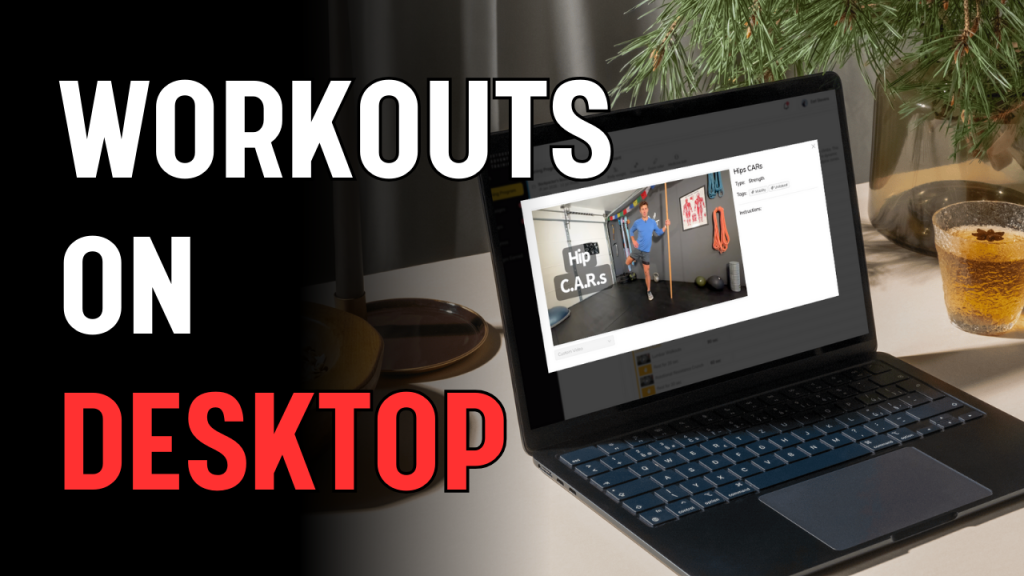
If you’re using the OAT Fit app on desktop, workouts work a little differently than they do on mobile. This guide walks you through how to add workouts to your calendar and play them from desktop, plus where to find exercise demos and tutorials.
Quick Overview
📅 On desktop, workouts must be on your calendar to be played.
🚫 You cannot stream workouts directly from the Training Program list.
📺 Once a workout is added to your calendar, you can play it, screen-share it, or send it to a TV.
🎥 Individual exercise demos are accessible inside workouts, not as a separate library.
Step 1: Start from Your Main Dashboard
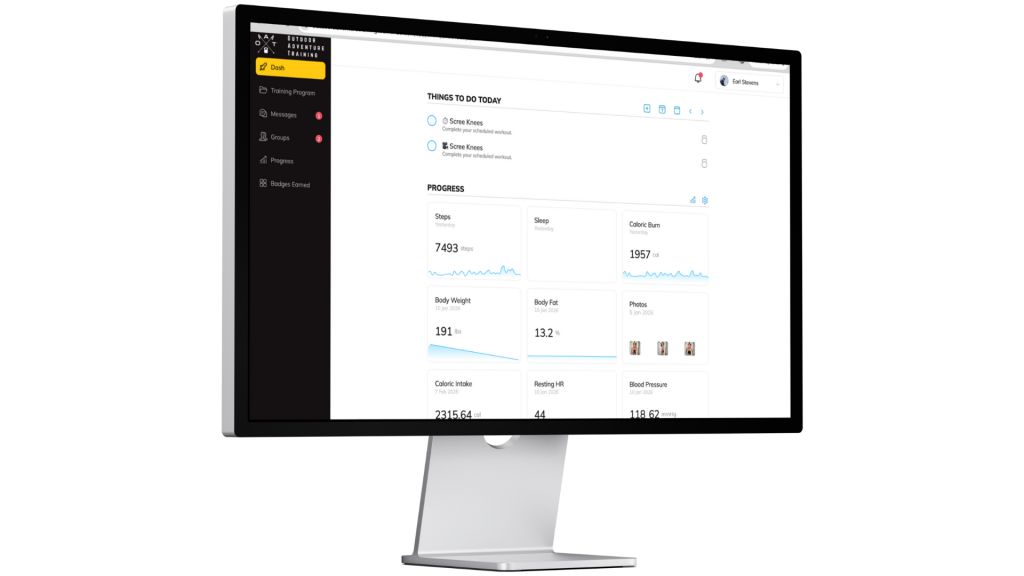
IAfter logging in on desktop, you’ll land on your Dashboard.
This is your control center:
- Today’s scheduled workouts
- Upcoming workouts
- Progress tracking
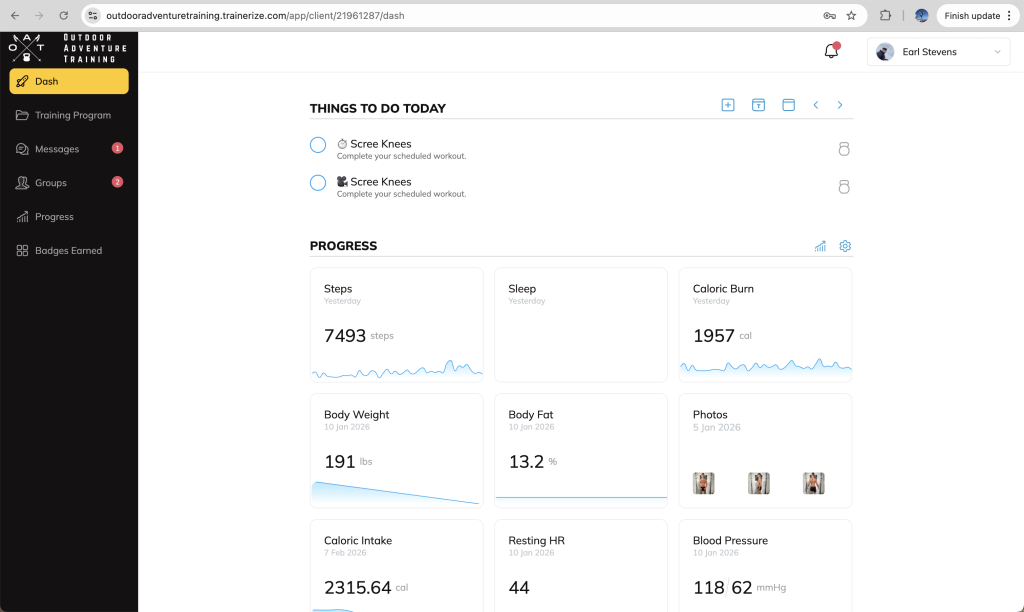
If the workout you want to do is already listed here, you’re good to go — just click it and hit Play.
Step 2: Add a Workout to Your Calendar
If the workout you want is not on your calendar yet, you’ll need to add it first.
From the Dashboard:
- Click the ➕ Plus button in the top right
- Select Workout
- Choose Select from current training program
- Select your program
- Select the specific workout
- Click Add
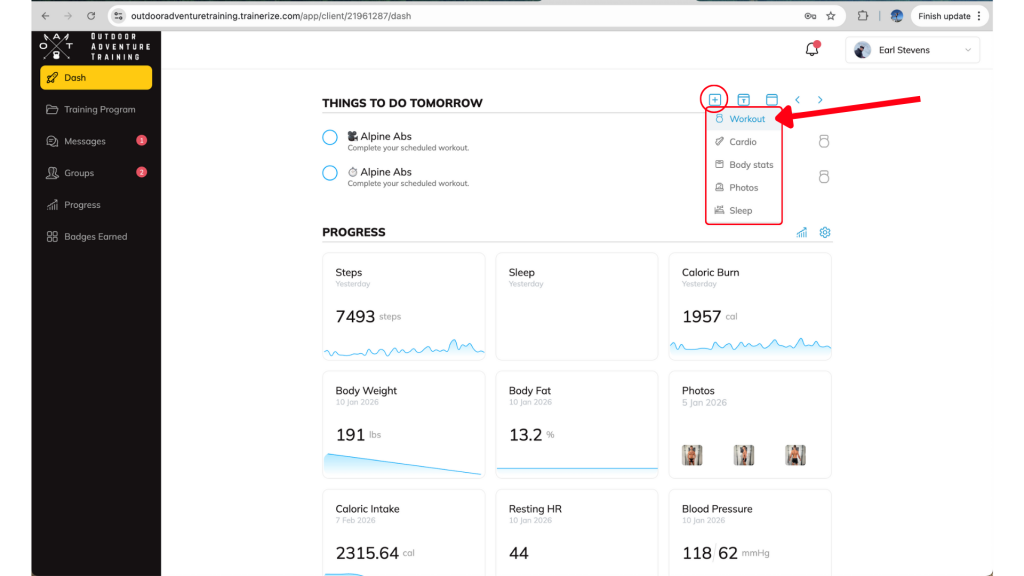
1-2. Click the ➕ Plus button in the top right, select Workout
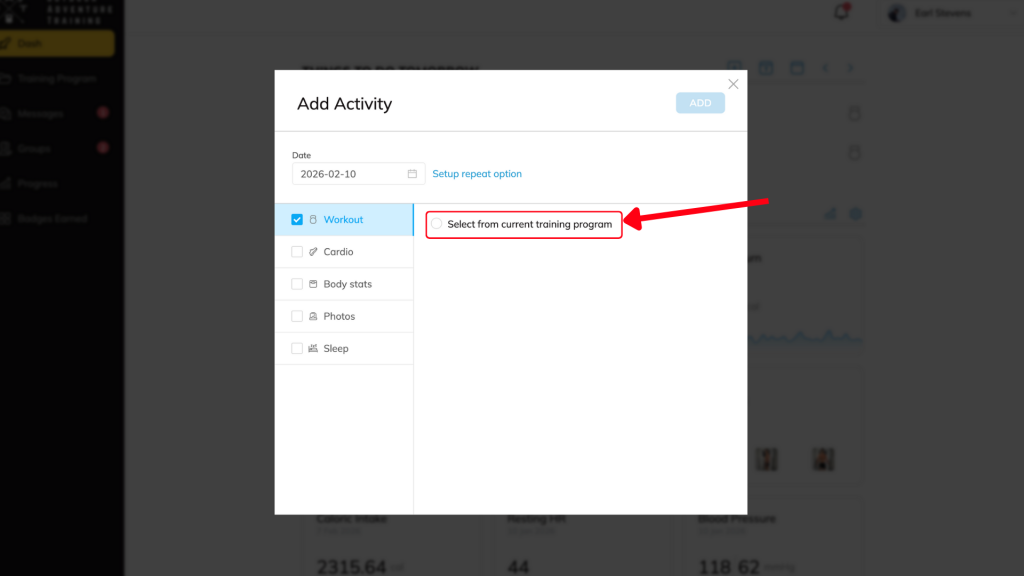
3. Choose Select from current training program

4. Choose Select from current training program
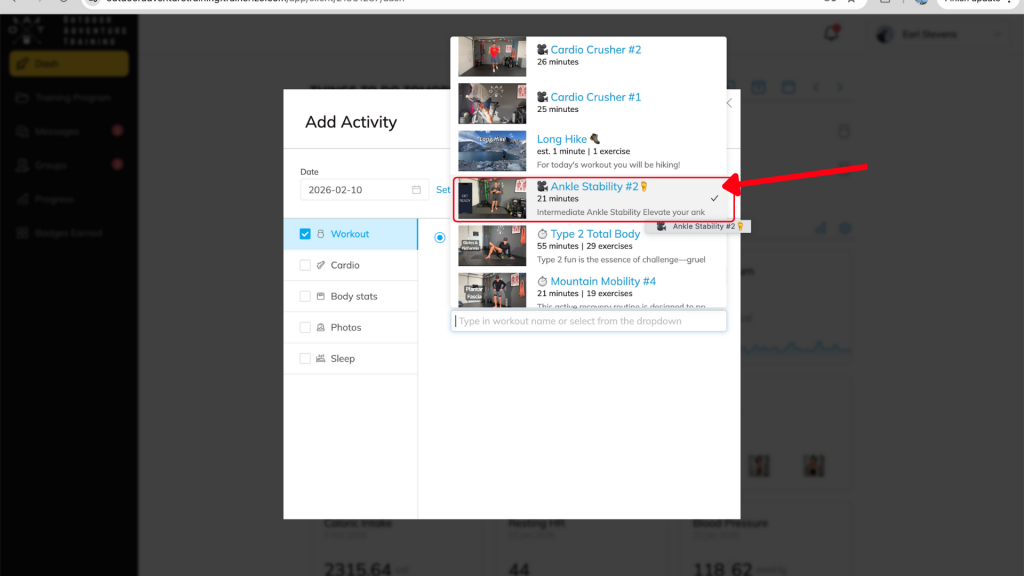
5. Select a Specific Workout
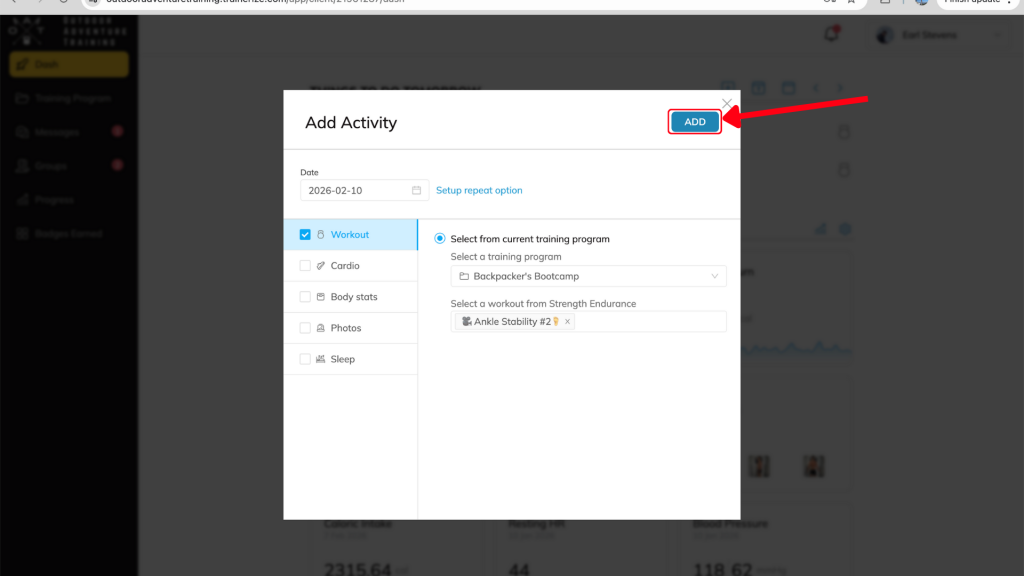
6. Click Add
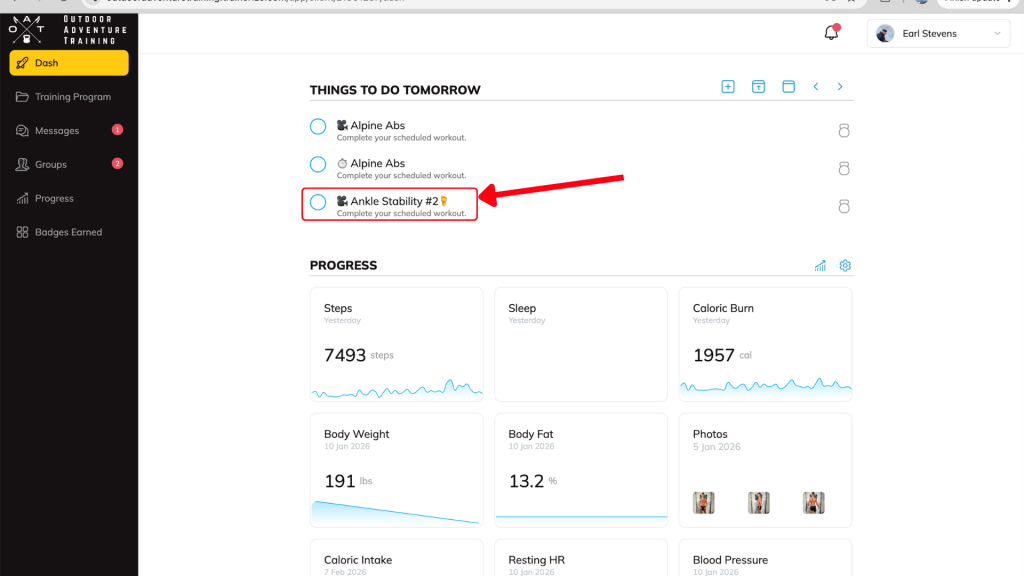
✅ The workout is now added to your calendar and ready to play. Desktop playback is tied to scheduled sessions. Adding a workout to your calendar ensures smooth streaming, proper tracking, and consistent app performance.
Step 3: Play the Workout from Your Calendar
Once the workout is on your calendar:
- Click the workout from your Dashboard
- Hit Play
- Follow along as usual
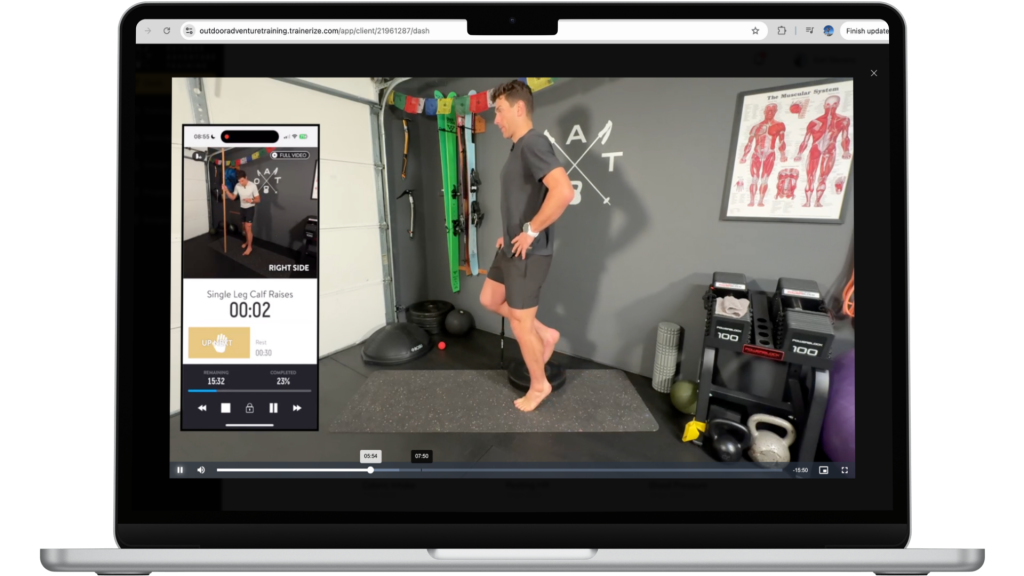
From here, you can:
- Screen share
- AirPlay
- Use an HDMI cable for a larger display
This is the best desktop setup for longer strength sessions and follow-along workouts.
Using the Training Program Tab
The Training Program tab on the left is best used for:
- Browsing your current phase
- Seeing what workouts are coming up
- Reviewing program structure
What you can do here:
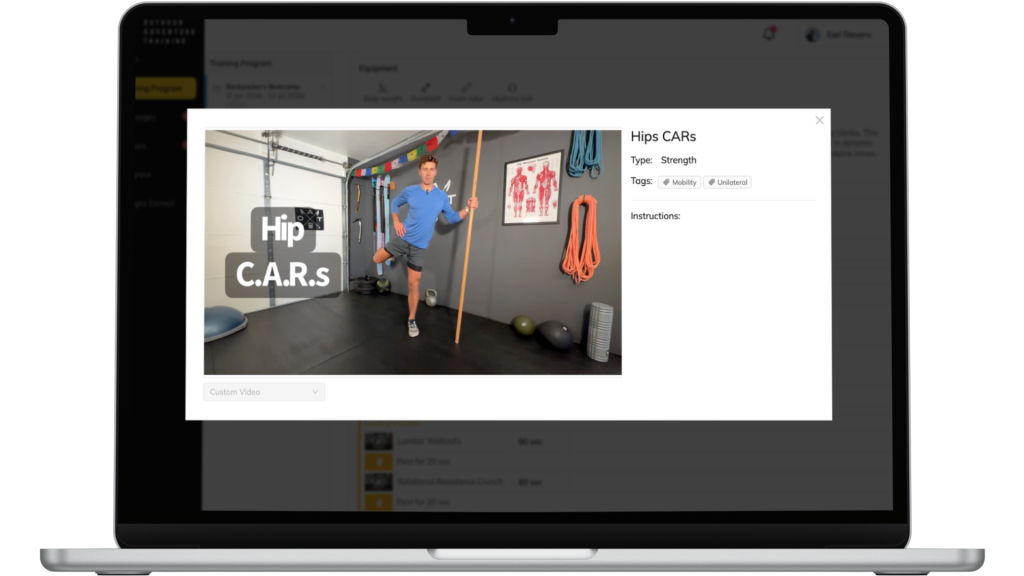
- Open a workout
- Click into the timer version
- View individual exercise demo videos
What you can’t do here:
- Play a full workout directly
- Use the Interval Timer
- Stream follow-along workouts without adding them to your calendar
👉 Think of this tab as a planning and preview tool, not the main playback hub.
Still Not Seeing What You Expect?
If something feels off:
- A workout isn’t showing
- A video won’t play
- An exercise demo seems missing
Send us a message in the app and we’ll take a look. Most fixes are quick.
That’s when we can help realign your program so you’re progressing safely and sustainably.


